Home Wi-Fi Made Simple: Routers, Mesh, and Security
Learn the basics of home Wi-Fi: choose the right router, know when to go mesh, and lock down security with smart settings, updates, and best practices.
Understanding Home Wi‑Fi Basics
Your home Wi‑Fi is a small radio network that links your devices to the internet through a router and, sometimes, additional access points. At its core, Wi‑Fi trades bandwidth, latency, and range. Lower frequencies tend to travel farther and penetrate walls better, while higher frequencies deliver more throughput at shorter distances. Many homes use dual‑band or tri‑band gear so busy devices can spread out across available airspace. A router directs traffic, provides network address translation and a firewall, and manages your wireless radios, while a separate modem talks to your internet provider. Think of Wi‑Fi like lanes on a road: when everyone squeezes into one lane, congestion builds and speeds drop. Smart configuration reduces collisions and interference, particularly in crowded apartment buildings. Understanding these fundamentals empowers you to choose the right equipment, place it wisely, and interpret signal bars, speed tests, and Wi‑Fi indicators with confidence instead of guesswork.
Choosing the Right Router for Your Space
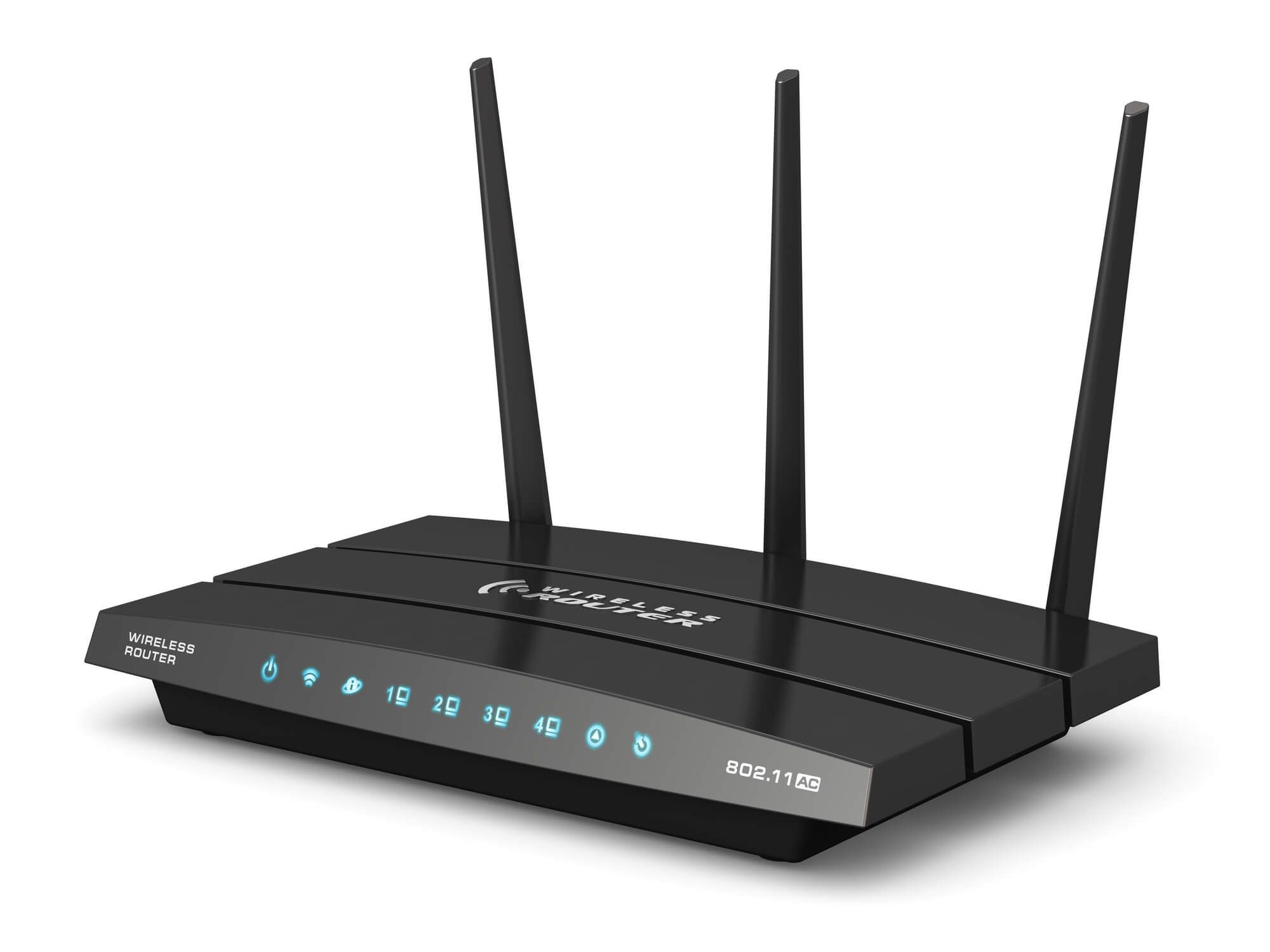
A good router should match your home layout and device count, not just boast peak numbers. Look for solid coverage, a capable processor and memory for heavy multitasking, and radios that support modern features like MU‑MIMO, OFDMA, and beamforming to serve many devices efficiently. Extra Ethernet ports help hard‑wire TVs, consoles, and desktops for rock‑steady performance. Some models offer USB for lightweight network storage or printers, plus parental controls and easy app management. Antennas matter too: more antennas can enable better spatial streams and focused signals, but placement and tuning are just as important. If your home is small and open, a single strong router centrally positioned may be enough. In large or segmented homes, consider gear that supports mesh expansion later. Prioritize consistent real‑world performance, security features, and reliable firmware updates over flashy speed claims that only appear under ideal lab conditions.
Mesh Wi‑Fi: When and Why to Use It
A mesh system uses multiple nodes to create one seamless network, ideal for multi‑story houses, long floor plans, or spaces with dense walls. Instead of a single router straining to reach distant rooms, each node relays data, keeping signals strong where you actually use devices. For the best results, ensure nodes have a clear path to one another and avoid placing them too far apart. A dedicated backhaul improves stability; a wired backhaul over Ethernet or in‑home coax adapters can dramatically boost consistency, while wireless backhaul is convenient but shares airtime. Mesh simplifies roaming so phones and laptops switch between nodes automatically under a single SSID. It also centralizes management, letting you adjust channels, guest networks, and QoS in one place. If your internet is fast but certain rooms still feel slow or unreliable, mesh often solves the coverage problem without resorting to clunky range extenders that split bandwidth and add latency.
Placement and Interference: Getting the Most from Signals
Even great hardware underperforms if placed poorly. Aim for central, elevated placement, away from thick masonry, metal surfaces, water tanks, and large appliances. Avoid hiding your router in a cabinet or behind a TV, which can reflect and absorb signal. Building materials matter: brick, concrete, and plaster with wire lath weaken Wi‑Fi more than drywall. Household electronics can add interference; microwave ovens, older cordless phones, and baby monitors can crowd lower‑frequency channels. Try different channels and let the router's auto‑selection adapt to noisy neighbors, but verify results during peak household usage. Slightly angling or spreading antennas can help coverage across floors; think in three dimensions and place nodes or access points where people actually use devices. For mesh, position nodes within strong signal range of each other, not at dead‑zone edges. A little experimentation—small moves of a few feet—can make a surprising difference in stability and speed.
Tuning for Speed and Reliability
Once coverage is solid, tune for consistent performance. Enable QoS or smart queue management so video calls and gaming packets stay smooth even when big downloads are running. Use band steering to nudge capable devices onto higher‑frequency bands while leaving smart home gadgets on lower bands for range. Adjust channel width judiciously: wide channels can be fast but collide more in dense neighborhoods; narrower channels often win on reliability. Spread heavy users across bands and consider load balancing in mesh systems. Hard‑wire stationary devices with Ethernet to free up wireless airtime. If cabling is difficult, evaluate MoCA over coax or carefully chosen powerline adapters as backhaul alternatives. Review which features you truly need; disabling seldom‑used extras can reduce overhead. Periodically run local and internet speed tests from the same spot to compare LAN performance against your provider's service, helping you pinpoint whether the bottleneck is Wi‑Fi, wiring, or the wider internet.
Security Essentials for Peace of Mind
Protecting your network starts with strong encryption. Use up‑to‑date security modes such as WPA2/WPA3, set a long, unique passphrase, and change the default admin credentials immediately. Disable WPS to prevent easy‑to‑guess PIN attacks. Create a guest network that's isolated from your private devices, and consider placing smart home gadgets on a separate network or VLAN if your gear supports it. Keep firmware updates current to patch vulnerabilities and improve stability, and turn off remote management unless you truly need it. Built‑in firewall settings are usually sensible out of the box; avoid opening ports casually. For extra control, enable DNS filtering or safe browsing options to block known malicious domains. Monitor the connected device list so unfamiliar clients do not lurk unnoticed. Remember that MAC filtering is not strong security—treat it as a convenience at best. A secure setup guards your data and keeps bandwidth focused on your household.
Troubleshooting and Ongoing Care
When speeds dip, diagnose methodically. Test close to the router, then in problem rooms, comparing results to see whether the issue is coverage, interference, or your ISP. Check if performance is poor on both Wi‑Fi and Ethernet; if wired speeds are slow, investigate the modem, service plan, or possible double NAT. Consider setting your provider's gateway to bridge mode so your router handles routing cleanly. Review logs, verify firmware is current, and experiment with channels or channel width during busy times. Power‑cycling can clear temporary glitches, but frequent reboots signal a deeper problem like overheating or a failing power adapter. Back up your configuration after major changes, label cables, and keep a short note of your SSID, passphrase, and node locations. A small UPS can prevent corruption during brief outages. With a bit of upkeep, your network remains fast, secure, and ready for every device in your home.