External Storage Explained: SSD vs HDD for Everyday Use
Learn the key differences between external SSDs and HDDs—speed, durability, capacity, price—and how to pick the right drive for daily tasks.
Understanding External Storage
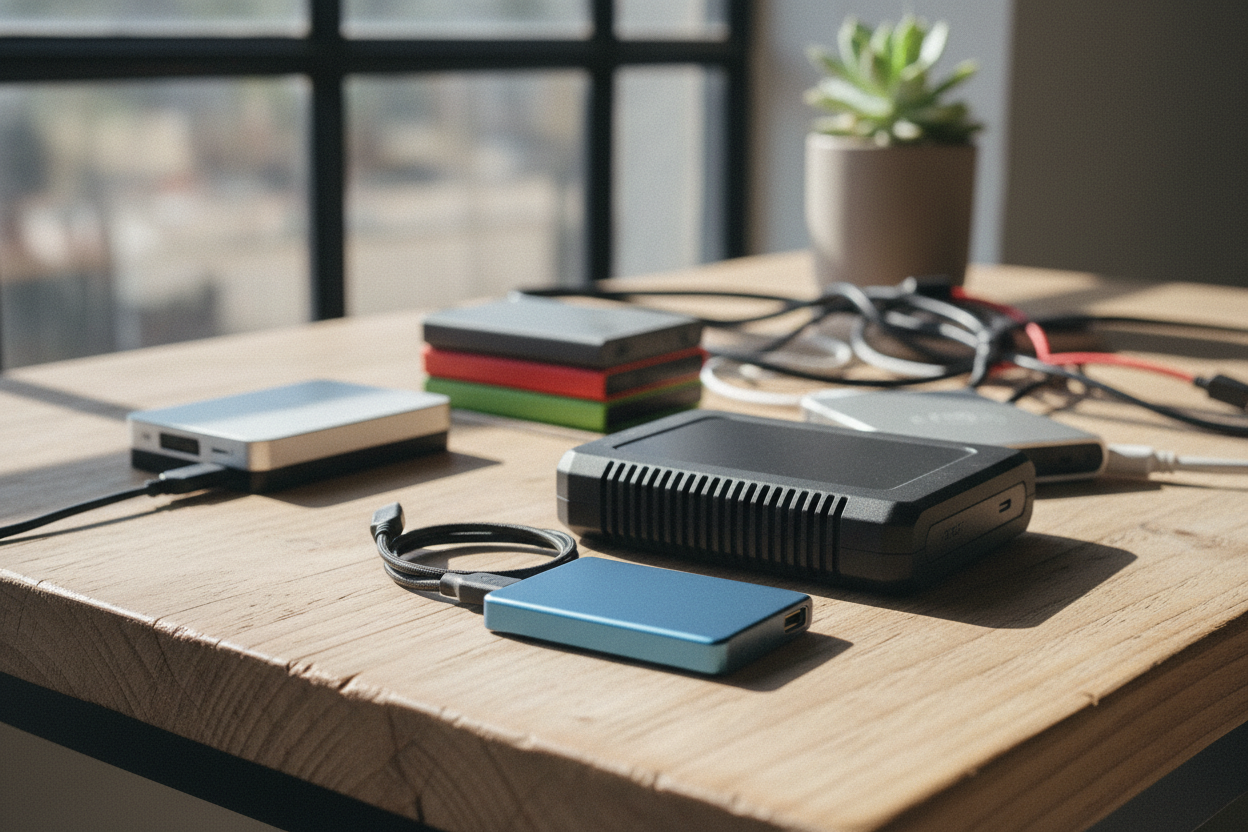
External storage is a simple way to expand device capacity, safeguard important files, and move data between places without hassle. The two most common types are the SSD (Solid State Drive) and the HDD (Hard Disk Drive). An SSD stores data in NAND flash memory with no moving parts, making it compact and fast. An HDD uses spinning platters and a moving read/write head, prioritizing large capacity at a lower price per gigabyte. For everyday use, both can work well, but they serve slightly different needs. If you carry your drive often, plug it into multiple computers, or want quick access to photos, documents, and apps, an SSD feels snappier. If you primarily need a large, affordable library for backups, videos, or archives, an HDD shines. Most external drives connect over USB, so setup is typically plug and play. Choosing between them means balancing speed, durability, capacity, and budget against your typical tasks.
Speed and Day-to-Day Performance
When people talk about speed, they usually mean how fast a drive copies files and how responsive it feels during everyday tasks. SSDs excel at random I/O, opening folders with many small files and launching portable apps with minimal latency. They also deliver strong sequential performance for big transfers, so moving a batch of high-resolution photos or a large project folder finishes quickly. HDDs can handle large sequential copies well, but their moving parts slow down random access, which you notice when browsing complex directories or loading many small items. For gaming libraries, SSDs reduce load screens and texture pop-in; for office work, they make document searches and quick edits feel immediate. Interface matters too: a modern USB-C connection with USB 3.x bandwidth helps both drive types, but SSDs benefit most because they can saturate more of that pipeline. In short, if you value responsiveness and frequent file shuffling, an SSD provides a clear, daily quality-of-life upgrade.
Durability, Noise, and Power
Durability matters if you commute, travel, or simply move your drive between rooms. SSDs are more shock resistant because they have no moving parts, reducing the risk of damage from bumps. HDDs can be durable in protective enclosures, yet the internal spinning platters and actuator are susceptible to drops while running. Noise and vibration also differ: HDDs hum, click, and can vibrate on a desk; SSDs are silent. Power draw influences battery life for laptops and tablets. SSDs typically consume less, helping you squeeze more unplugged time, while HDDs may sip more power during spin-up and sustained transfers. Heat is another factor. Efficient SSDs generally run cooler, though compact enclosures for either drive need ventilation and should not be smothered under paperwork or blankets. For field use—recording audio, capturing photos, or working in transit—an SSD's shock tolerance, silence, and low power profile usually deliver a calmer, more reliable experience than a traditional HDD.
Capacity, Price, and Value
If your priority is raw capacity for the lowest cost, HDDs are tough to beat. They offer many terabytes at a lower price per gigabyte, making them practical for storing video libraries, system images, and long-term archives. SSDs cost more per gigabyte but deliver far better responsiveness. For many people, a small-to-midsize SSD is ample for active projects, with an HDD kept as a bulk archive. Think of it as a performance tier: keep your working set—current documents, photos in editing, and portable applications—on the SSD, and move completed or infrequently accessed items onto the HDD. This hybrid approach optimizes both speed and budget. Also consider future growth. Buying slightly more capacity than you need today prevents constant shuffling as files grow. Finally, evaluate the total cost of ownership: a faster SSD may save time repeatedly over its life, while a roomy HDD may spare you from juggling space or paying for multiple smaller drives.
Connectivity and Compatibility
An external drive is only as good as its connection. Look for USB-C or USB 3.x to avoid bottlenecks; many enclosures support UASP (USB Attached SCSI Protocol) for lower overhead and better queue handling, which helps SSDs shine. Some high-end options use Thunderbolt, offering even more bandwidth for demanding workflows like video editing, but standard USB is plenty for basic tasks. Cross-platform compatibility depends on file system. exFAT is a practical choice for sharing between major desktop operating systems and many tablets, while NTFS, APFS, or ext4 suit platform-specific use. Consider hardware encryption or software-based password protection if you carry sensitive data. Mobile users should check OTG support and power needs; some phones and tablets can power an SSD but may struggle with an HDD spin-up. Short, quality cables reduce dropouts, and safely ejecting the drive prevents file system corruption. Balancing interface speed, format, and security ensures smooth plug-and-play across your devices.
Practical Use Cases and Picks
Match the drive to the job. For students and office workers juggling notes, PDFs, and presentations, a compact SSD keeps everything quick and quiet. Photographers and content creators benefit from an SSD as a working drive for culling and edits, paired with an HDD for bulk storage of RAW files and finished exports. Gamers appreciate faster level loads on SSDs, while a large HDD can hold less-played titles. For a home media center, an HDD is economical for movies and backups, whereas a travel kit favors an SSD's resilience. Small businesses often combine both: SSDs for active projects, HDDs for scheduled backups. A layered plan is ideal: keep one external SSD for speed, one external HDD for capacity, and consider a second backup location following the 3-2-1 rule—multiple copies, using different media, with one off-site. This way, you get everyday responsiveness without sacrificing the safety net of roomy, cost-effective archives.
Care, Longevity, and Buying Tips
Good habits extend the life of any external drive. Always safely eject before unplugging to prevent data loss. Keep firmware and backup software updated, and avoid filling drives to the brim; leaving free space helps SSDs with wear leveling and keeps HDDs performing smoothly. For SSDs, modern controllers handle TRIM and garbage collection automatically in many setups; you do not need to defragment them. For HDDs, occasional maintenance tasks can improve organization, but focus primarily on consistent backups. Monitor S.M.A.R.T. health indicators for both types and watch for warning signs like repeated disconnects or unusual noises from HDDs. Choose reputable brands, solid enclosures, and shock-resistant cases for travel. Check warranty terms, rated TBW (terabytes written) for SSDs, and spindle speed or cache for HDDs if listed. Finally, store drives in a cool, dry place, use quality cables, and test your backups periodically so recovery is straightforward when it matters most.